New features, improvements, and fixes in Fluen Studio.
New
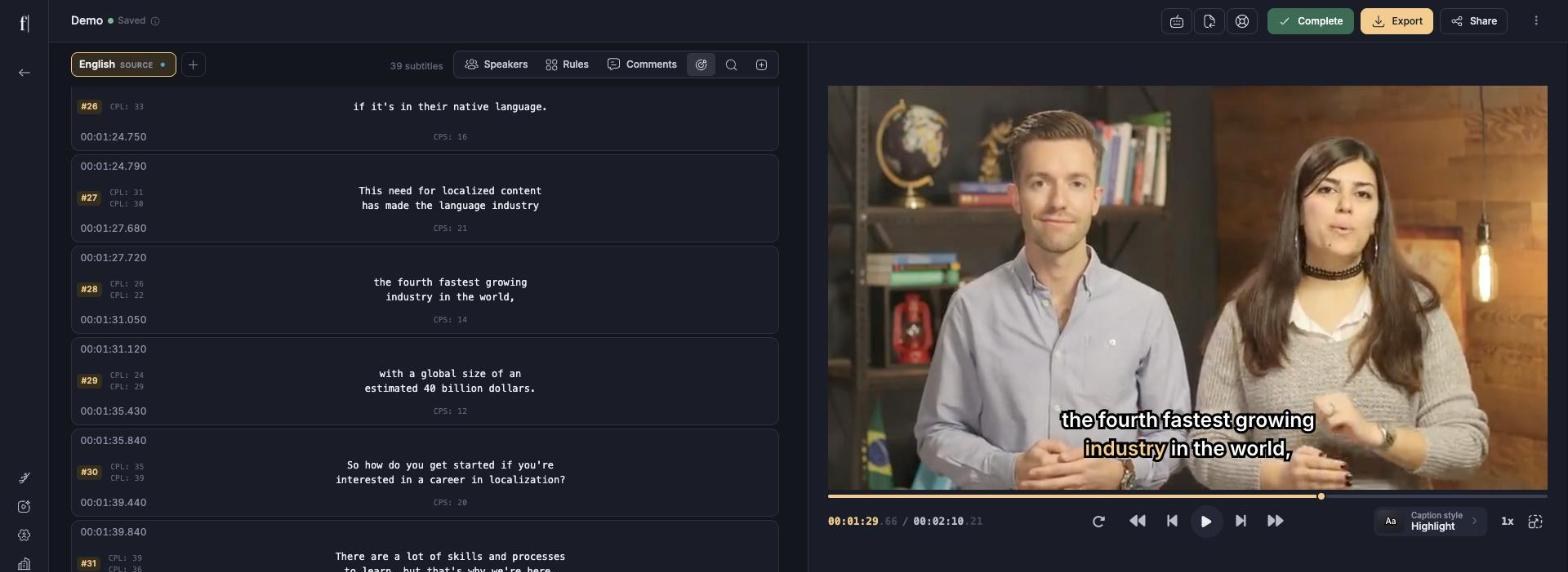
Dark mode
Fluen Studio now has a dark theme, designed from the ground up rather than simply inverted, so it is easy on the eyes during long editing sessions. Open the menu under your name and pick a Theme: Light, Dark, or Match system, which follows your computer's setting and switches automatically when it does.
Your choice is remembered in each browser you use, and switching is instant.
New
Dynamic captions and new caption styles
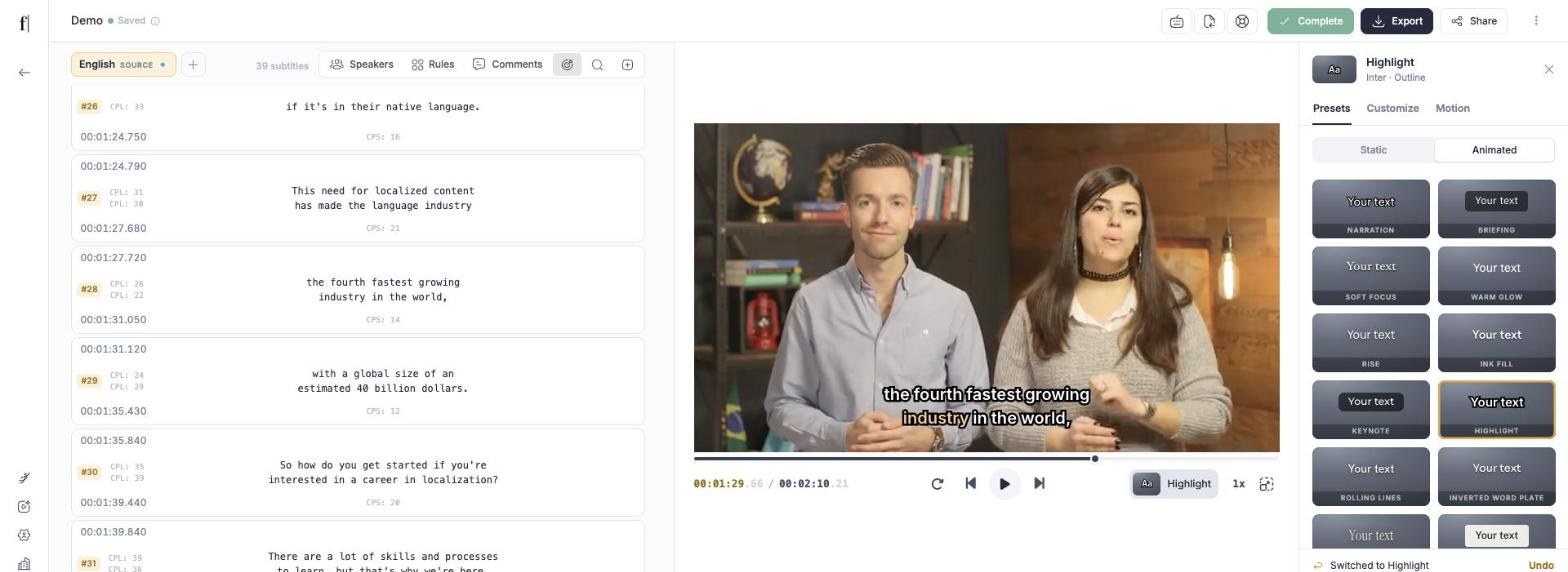
Dynamic captions were one of the most requested features of the past few months, and they are finally here. A new Caption style button under the video opens a panel with more than 30 ready-made styles: clean, static looks for broadcast and corporate videos, and dynamic ones where each word lights up, fills in or pops as it is spoken. Click a style to try it on your video, and undo if you change your mind.
You can also fine-tune any style (font, colours, background, outline, shadow, and how words appear) and save it under a name. In a team workspace, saved styles are shared with everyone, and the workspace owner can pick the style every new video starts with under Workspace Settings, Caption styles. When speaker names are turned on, each style shows them as a neat label with the caption.
Translations follow the style of the original captions until you give them one of their own. Videos you export with subtitles included look exactly like the editor, and so do share and review links. Videos you styled before keep their current look.
Improved
Typing a start or end time in the editor no longer lets a subtitle overlap the ones next to it.
Fixed
Fixed an issue where a glossary file that was rejected while replacing your whole glossary could stop the Glossary tab from loading.
Improved
Better translations and easier-to-read subtitles
Translations now run on even better AI models than before, so they are more accurate and read more naturally in the target language.
Subtitles are also easier to follow, in every language. Lines break in more natural places, words that belong together stay together, and subtitles with a lot of text stay on screen a little longer when there is a pause, so viewers have time to finish reading. There is nothing to change on your side: every new video gets these improvements automatically.
Fixed
Subtitles on share links now display correctly in Safari.
New
More accurate captions, two new engines
Captions in the language spoken in your video are now even more accurate. Speech recognition has come a long way over the last few months, and ElevenLabs Scribe v2 and Speechmatics performed very well in our latest benchmark. Both have joined the mix of speech-to-text engines we use, alongside OpenAI, Deepgram and AssemblyAI.
We run these benchmarks regularly, and Fluen always sends each language to the engine that handles it best, so there is nothing for you to set up. The engines only turn speech into text: splitting that text into well-timed, readable subtitles is always done in-house by Fluen.
Improved
A refreshed look and new tools in the editor
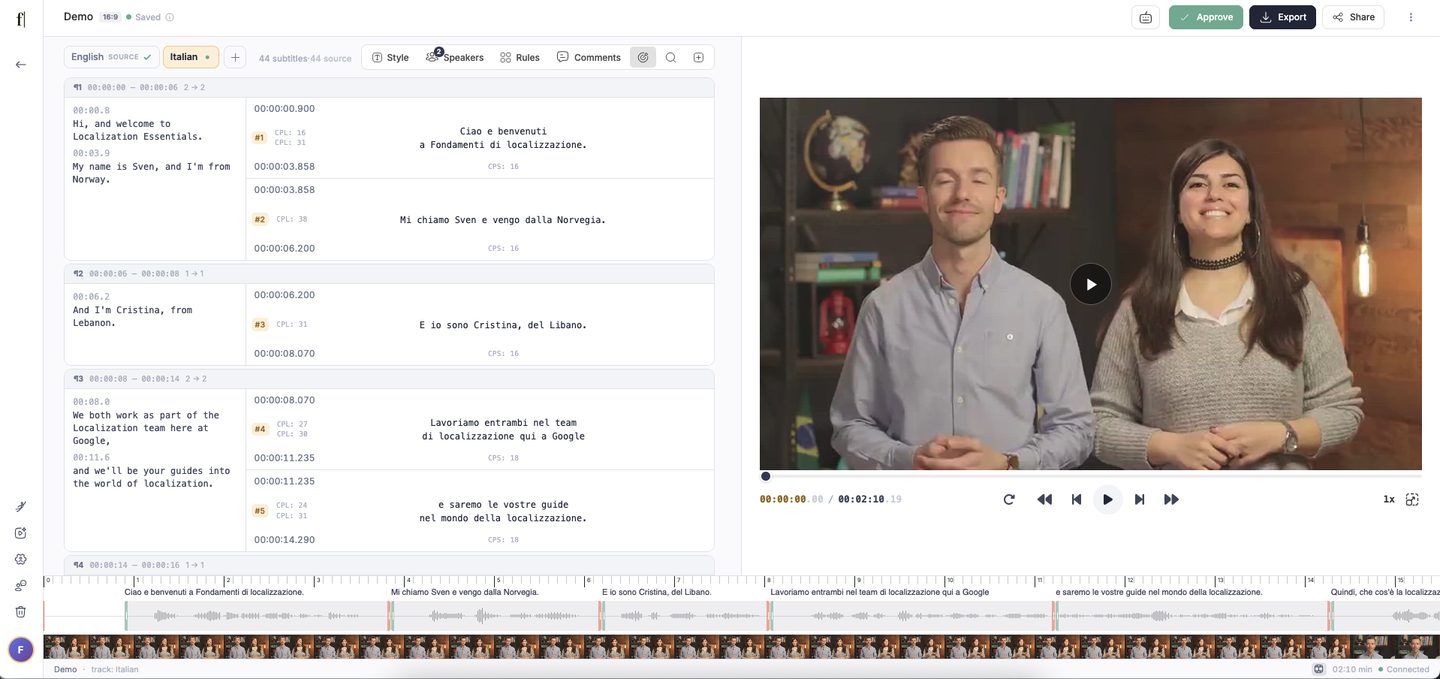
Fluen Studio has a refreshed look, and the editor gains a few new tools. The timeline now shows frames from your video and the text of each subtitle, and you can click anywhere on it to jump to that moment. A new issues list takes you straight to the subtitles that are too long or too fast to read. Audio files also get a proper player of their own.
Improved
Caption Defaults and Translation Defaults in your workspace settings are now one page, Subtitle Defaults, so your transcription and translation preferences are in one place.
Improved
A new button in the editor toolbar adds a subtitle at the current point in the video.
New
Comment on subtitles and send them for approval
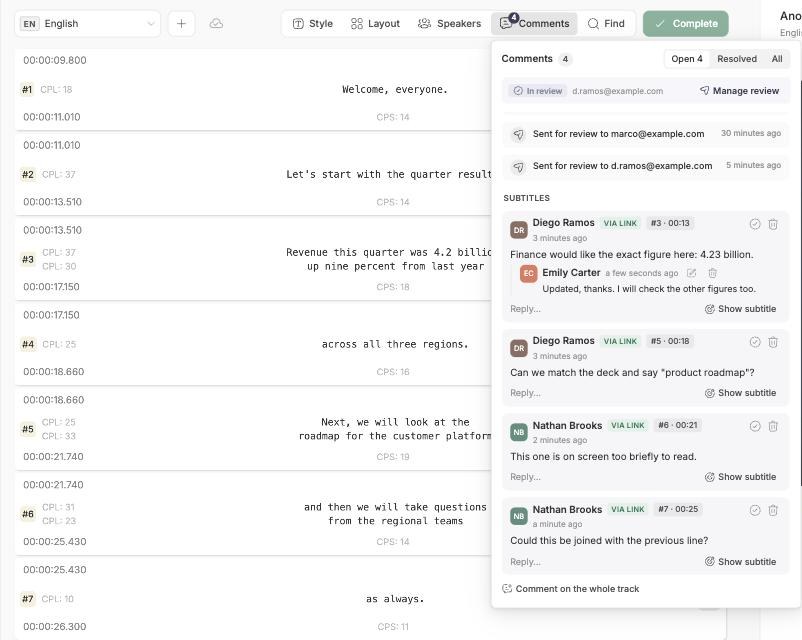
You can now leave notes on your subtitles instead of keeping feedback in email or chat. Comment on a single subtitle or on the video as a whole, reply to each other, and mark a conversation as resolved once it is settled. Everyone in your workspace sees the same thread, and new comments reach you as one email rather than one message per note.
People outside Fluen can join in too: set a share link to Can comment and anyone who opens it can add notes under their name. On the Team plan you can also send subtitles for approval. A reviewer gets their own private link, with no account needed, where they can comment, propose better wording that you accept with one click, and approve or ask for changes. Each language is approved on its own, so you always know which ones are signed off.
Fixed
Fixed an issue where, in some cases, subtitles stayed on screen well past the spoken words when a short line was followed by music or silence.
New
Fluen is now on Zapier
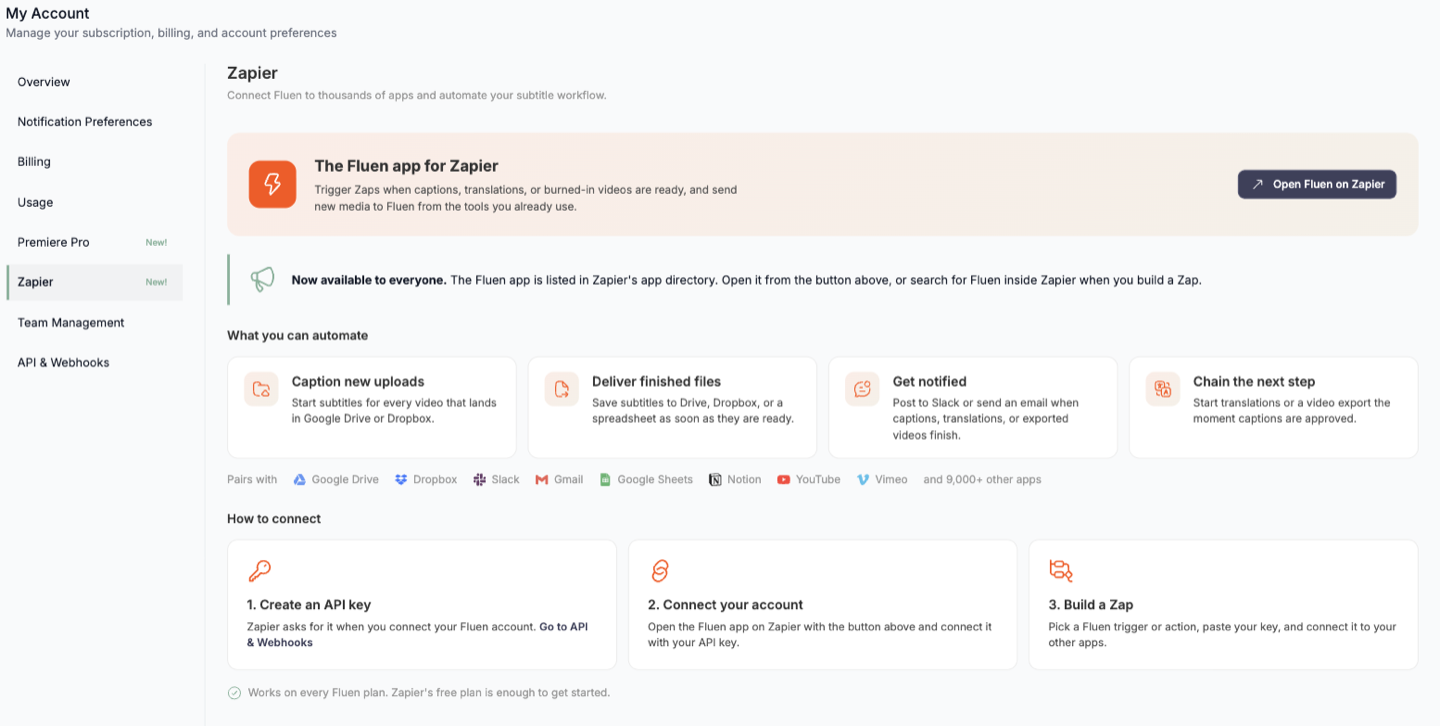
You can now connect Fluen to more than 9,000 apps through Zapier, with no coding needed. Start subtitles for every new video that lands in Google Drive or Dropbox, get a Slack or email message the moment subtitles or translations are ready, and save the finished files wherever your team keeps them.
Find the Fluen app in Zapier's app directory, or open Settings and choose Zapier for a short guide to connecting your account. It works on every Fluen plan, and Zapier's free plan is enough to get started.
Improved
You can now clear a whole glossary in one step, with a confirmation first, instead of removing terms one by one.
Fixed
Audio-only files with a video file name, such as an .mp4 or .mov without a picture track, now process as audio instead of failing.
Fixed
Fixed transcription failures for Hebrew, Tamil, Hindi and Urdu when a specific transcription provider is selected.
Fixed
Exporting a video with subtitles included now works for ProRes and other files whose picture size could not be read at upload.
Fixed
Exporting a video with subtitles included no longer fails on very long subtitle files, especially in Cyrillic, Chinese, Japanese or Korean.
Fixed
Signing in with Google on an email registered with a password, or the other way round, now tells you which sign-in method to use instead of showing an error.
Improved
Exporting many videos with subtitles at once is now more reliable: during busy periods exports wait their turn, and the export window tells you when yours is queued.
New
Import your corrected subtitles for many videos at once
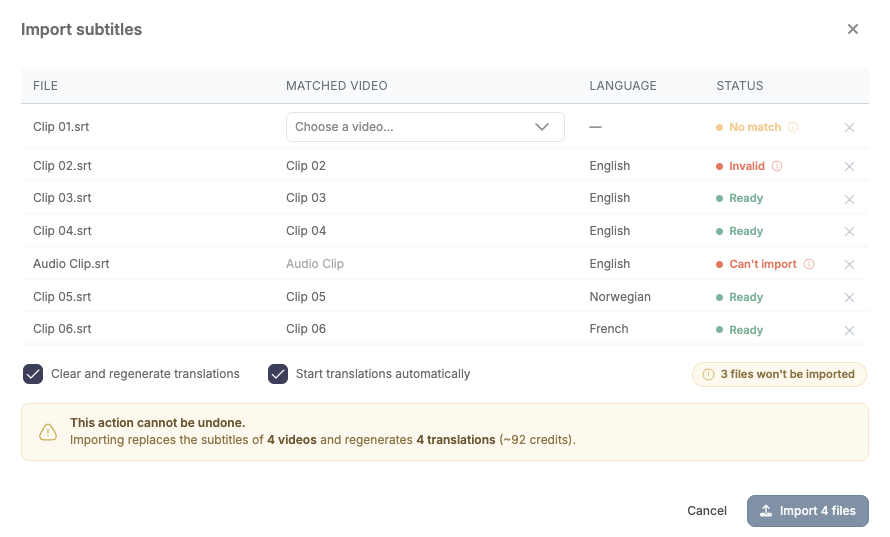
If you polish your subtitles outside Fluen, you can now bring them back for a whole batch of videos in one step. Drop your .srt files onto your media library and Fluen matches each file to the right video by its name, checks that every file is valid, and imports them together.
You can regenerate each video's translations from the new subtitles at the same time, so everything stays in sync. Any file that does not match a video, or that has a problem, is flagged before you import, so nothing changes by surprise.
New
Fluen comes to Adobe Premiere Pro
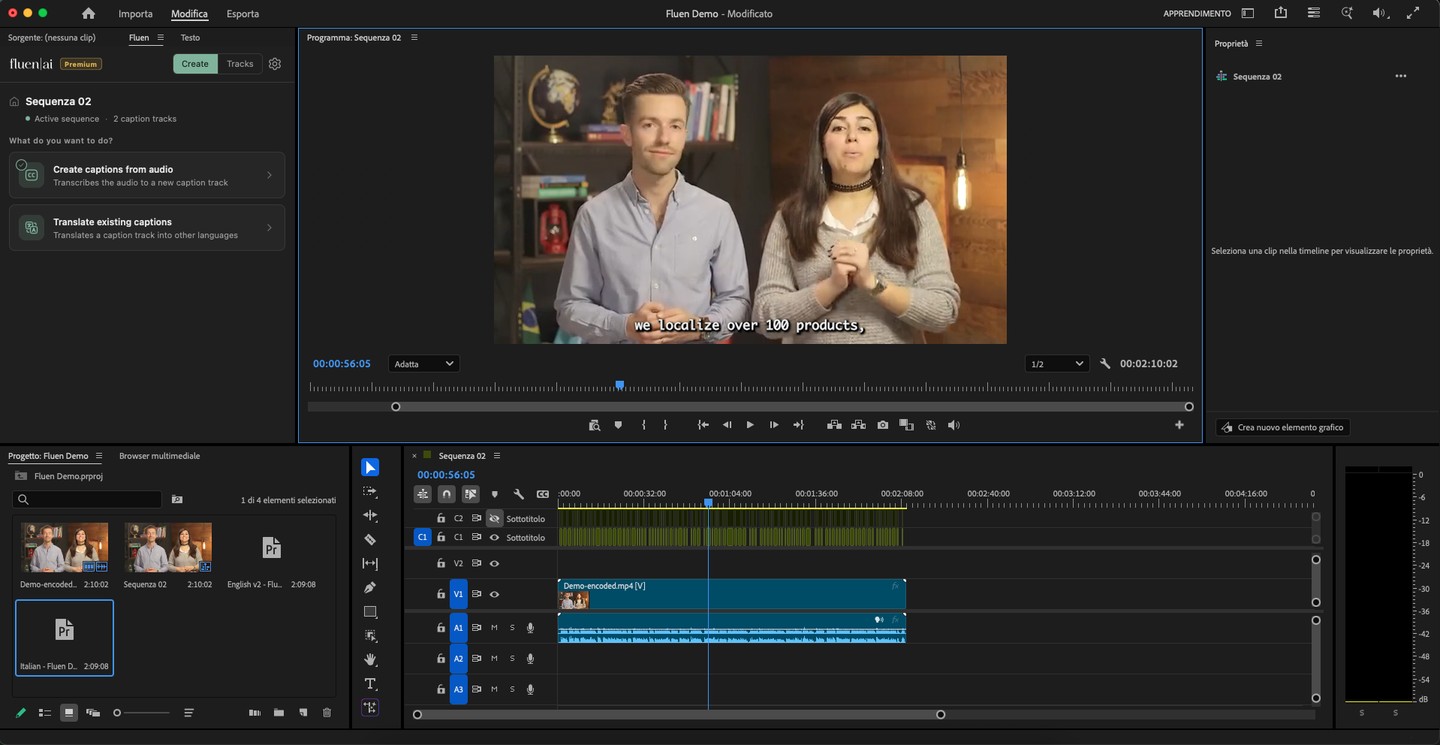
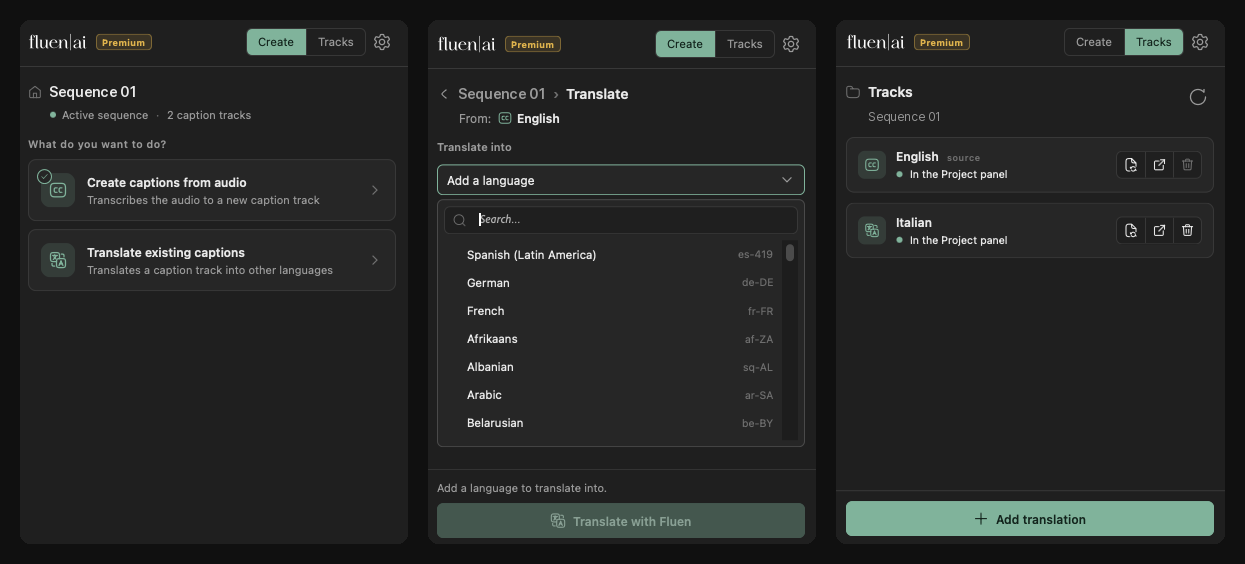
You can now create and translate captions without leaving your edit. The new Fluen plugin for Adobe Premiere Pro turns your sequence audio into captions and translates existing caption tracks into more than 50 languages, right inside Premiere Pro. Results land on your timeline as regular caption tracks, ready to style, tweak, and export.
The plugin is free to install from Adobe Exchange, and you sign in with the Fluen account you already have. On the Premium and Team plans, you can create captions and translations right away using your plan's credits; there is nothing separate to buy for the plugin. A new Premiere Pro section in My Account lets you see and manage the connection.
Fixed
Fixed a rare issue where cancelling a plan in the last couple of hours of its billing cycle could fail to stop the upcoming renewal; the plan page and the cancellation dialog now show the exact date and time your current billing period ends.
Fixed
Fixed a rare issue where a file could stay stuck on processing and never finish.
Improved
The track view now shows whether a file was uploaded with the multi-language audio option.
New
Track your credit usage
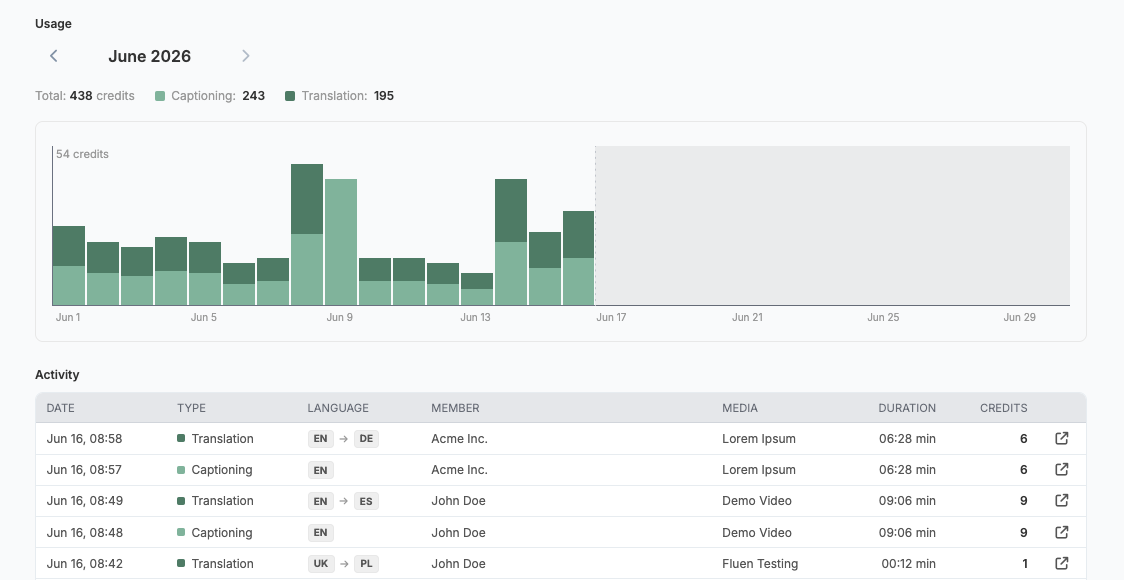
A new Usage view in your account shows exactly how your credits are being spent. For any month, see your total credits split between captioning and translation, a day-by-day chart, and a full activity log of every file processed, with its languages, duration, and credits used. You can browse previous months and export the log whenever you need it.
New
Import from Google Drive & Dropbox
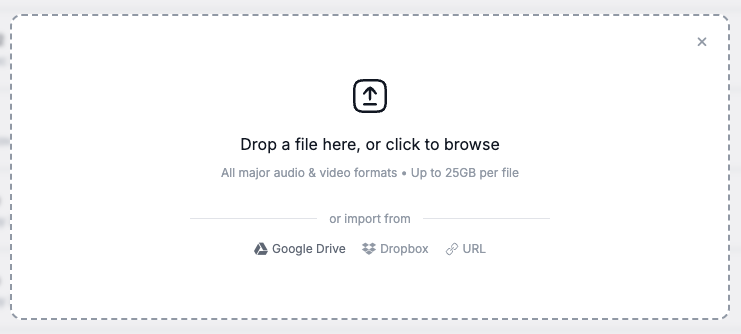
You can now import media files directly from Google Drive and Dropbox. In the upload form, choose your provider and select files in the familiar picker window. There is no need to download files and upload them again.
Imported files work exactly like regular uploads, with the correct title, duration, and video format detected automatically. Available on all plans, including Free.
Improved
Subtitle line breaks no longer leave small connecting words like 'the', 'of', or 'and' stranded at the end of a line, now across many more languages.
Improved
A smoother translation workflow
Completing a video and translating it now takes a single click: when translations are waiting, the Complete button becomes Complete & Translate. We also added an Add language button directly in the editor toolbar, and the Add Translation window now shows your source language and the translations you already have.
Improved
Subtitles now stay on screen long enough to read comfortably, and brief duplicate flashes are removed automatically.
Improved
Subtitles in Cyrillic and Greek scripts now display correctly in exported video, and the right font is chosen automatically for the language we detect.
New
Higher-quality translations and cleaner line breaks
We upgraded the technology behind automatic translation, so translated subtitles read more naturally across languages.
Subtitles in Chinese, Japanese, Korean, and Thai now break into lines at sensible points instead of splitting words apart. And when a line has more text than is comfortable to read in the time available, it is gently shortened so viewers can keep up.
Improved
The editor's reading-speed warning is now tuned for each language, since a comfortable pace in English is not the same as in Japanese or Finnish.
Fixed
Subtitle boxes now hold their position correctly when you resize them in the editor.
Improved
Spanish now defaults to Latin American Spanish.
Improved
Clearer feedback when you cancel an upload.
Improved
Upload up to 50 files at a time on paid plans, up from 5.
Improved
A faster library and editor
We made Fluen Studio noticeably faster. Your media library now appears instantly when you return to it, and the editor loads about a second faster on long videos.
New
Eight new fonts and a smarter font picker
The subtitle font collection grows with Arvo, Barlow, Fraunces, IBM Plex Sans, Inconsolata, Lora, Noto Serif, and Raleway.
The font menu is now searchable, and it clearly indicates when a font cannot display every character of your subtitle language, so you can choose with confidence. We also added Greek and Vietnamese to the font picker.
Fixed
Subtitles no longer flash or jump out of place when you resize the window or enter fullscreen.
Improved
The editor now shows a clear indicator when a subtitle does not fit inside the video frame.
New
Subtitles in exported video now match the editor exactly
When you export a video with its subtitles included, they now look exactly as they do in the editor: the same fonts, outlines, colors, and rounded corners, at every resolution up to 4K. What you see while editing is what you get in the finished file.
Exporting is also more dependable, especially for long and high-resolution videos. If something goes wrong you can retry from the export window, and if an export is already running you will see its live progress instead of starting over. We also expanded the range of writing systems that render correctly in exported video, including Vietnamese, Arabic, Hebrew, Thai, and East Asian languages.
Fixed
Deleting a subtitle line no longer scrolls the list back to the top.
Improved
More reliable waveform display for certain audio and video formats.
Improved
Expired files are now clearly marked in your library, and you can still download their subtitles.
Fixed
Files that fail to process now show a clear status and a more helpful message.
New
A redesigned subtitle editor
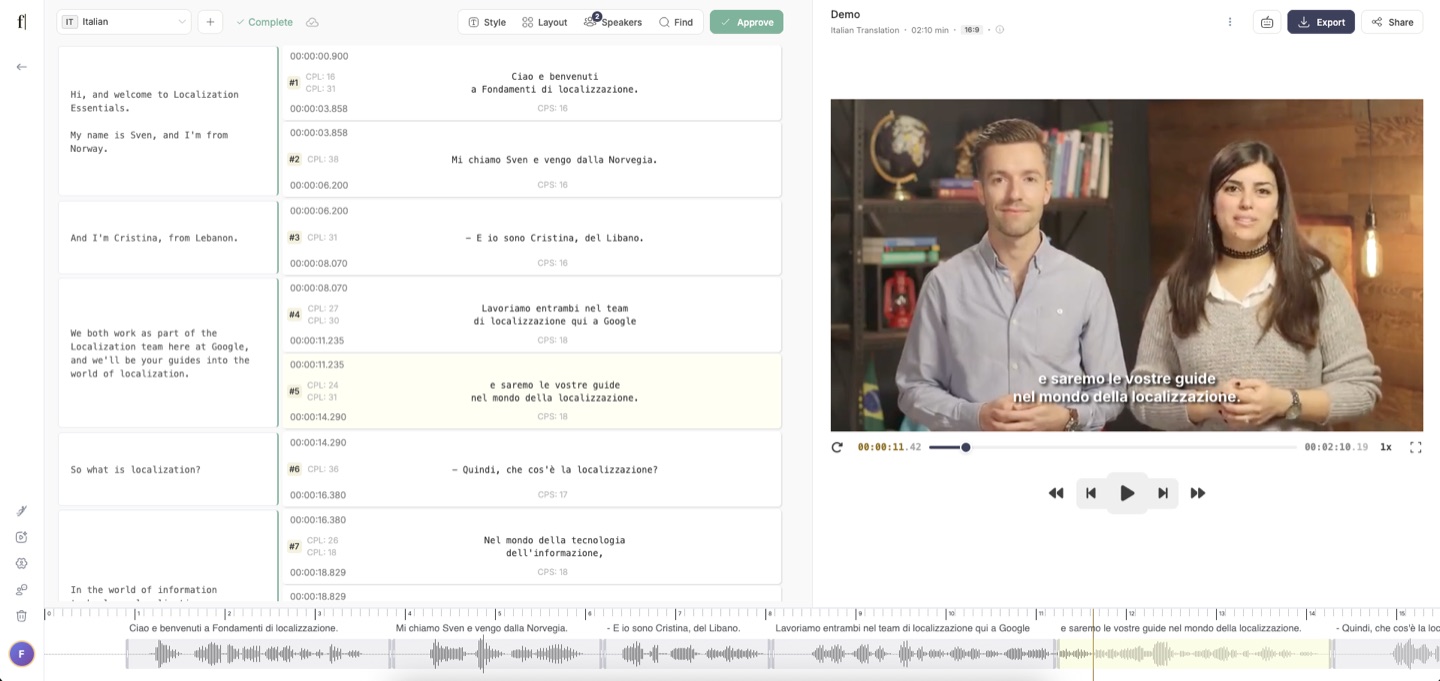
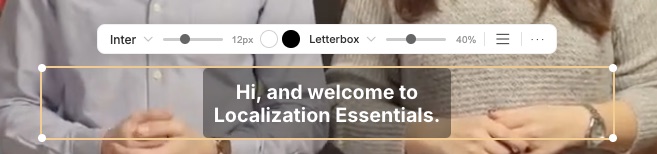
The subtitle editor has been rebuilt to make styling and positioning easier. Drag a subtitle anywhere on the video with guides that snap it into place, set the alignment of each line, and restyle text from a small toolbar that appears right where you are working.
New style presets show a live preview before you apply them, and the style and layout controls have been reorganized to be easier to find. You can also reshape translated subtitles, for example changing how many characters or lines each one uses, without translating the video again. A new panel lists every keyboard shortcut.
New
Four new languages and regional accents for transcription: Hebrew, British English, Australian English, and Swiss German.
Improved
Right-to-left languages such as Arabic and Hebrew now render more accurately in the editor.
Improved
Exporting video with subtitles now works reliably with more source formats, including large 4K and professional camera footage.
New
Speaker detection
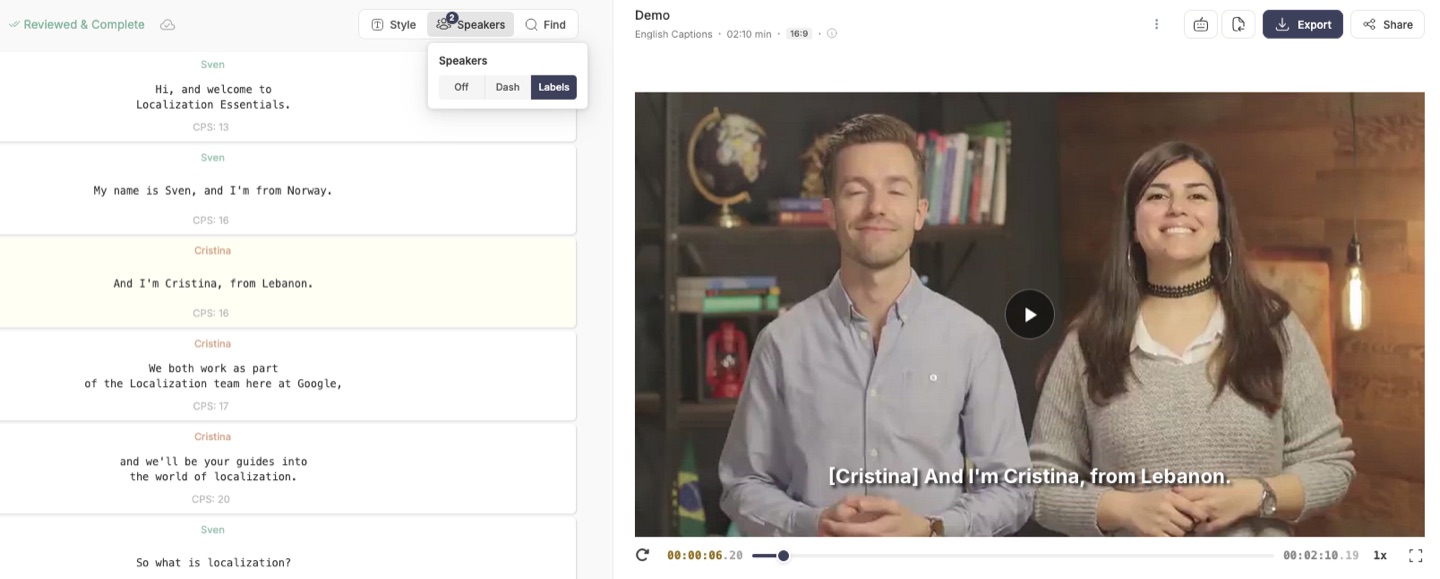
Fluen can now recognize who is speaking and reflect it in your subtitles and transcripts. Choose how speakers appear: turned off, a simple marker each time the speaker changes, or a named label for each person. You can set a preferred default for your whole workspace.
Improved
Workspace settings now save automatically as you change them.
Improved
A better glossary
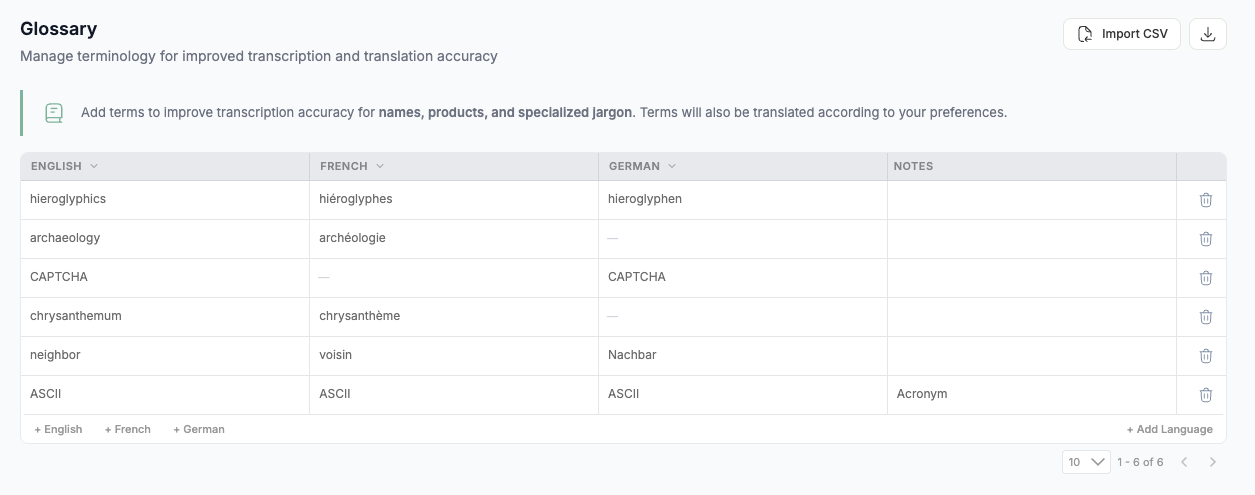
The glossary, which keeps names, brands, and specific terms consistent across your captions and translations, received a significant upgrade. You can now add terms while uploading by pasting in a list, manage them in a redesigned table with a separate column for each language, and import a simple one-column list.
New
Shift all subtitle timings by a fixed amount when exporting, to line them up with another edit.
New
Many new export formats
Subtitles can now be exported in more formats beyond SRT and VTT, including TTML, SSA, ITT, SBV, and EBU STL. Transcripts can be downloaded as Word, PDF, or plain text, and when speaker detection is on, the transcript is grouped by speaker into readable paragraphs.
Improved
Switching between different versions of a subtitle now keeps your place in the video instead of jumping back to the start.
New
Find and replace in the editor
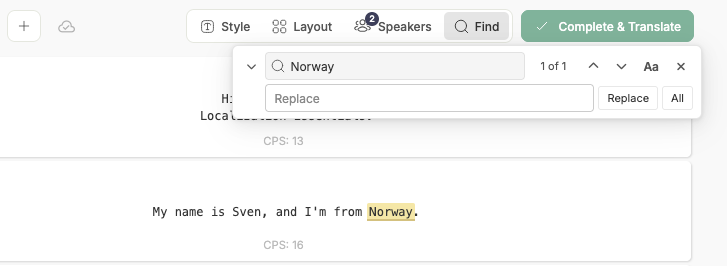
You can now search your subtitles and replace text in one place. Press Ctrl+F (Cmd+F on Mac) to find, or Ctrl+H (Cmd+H) to find and replace, with every match highlighted as you go. For translations, you can choose whether to search the translated text, the original, or both.
New
When transcribing, you can choose which engine Fluen uses, and AssemblyAI, which is fast and supports speaker detection, is now available to everyone.
New
A new guided tour helps first-time users find their way around.
Fixed
Opening punctuation marks, such as the inverted question mark, now appear in the correct place in Spanish, French, and German.
New
Share a subtitle preview with a public link
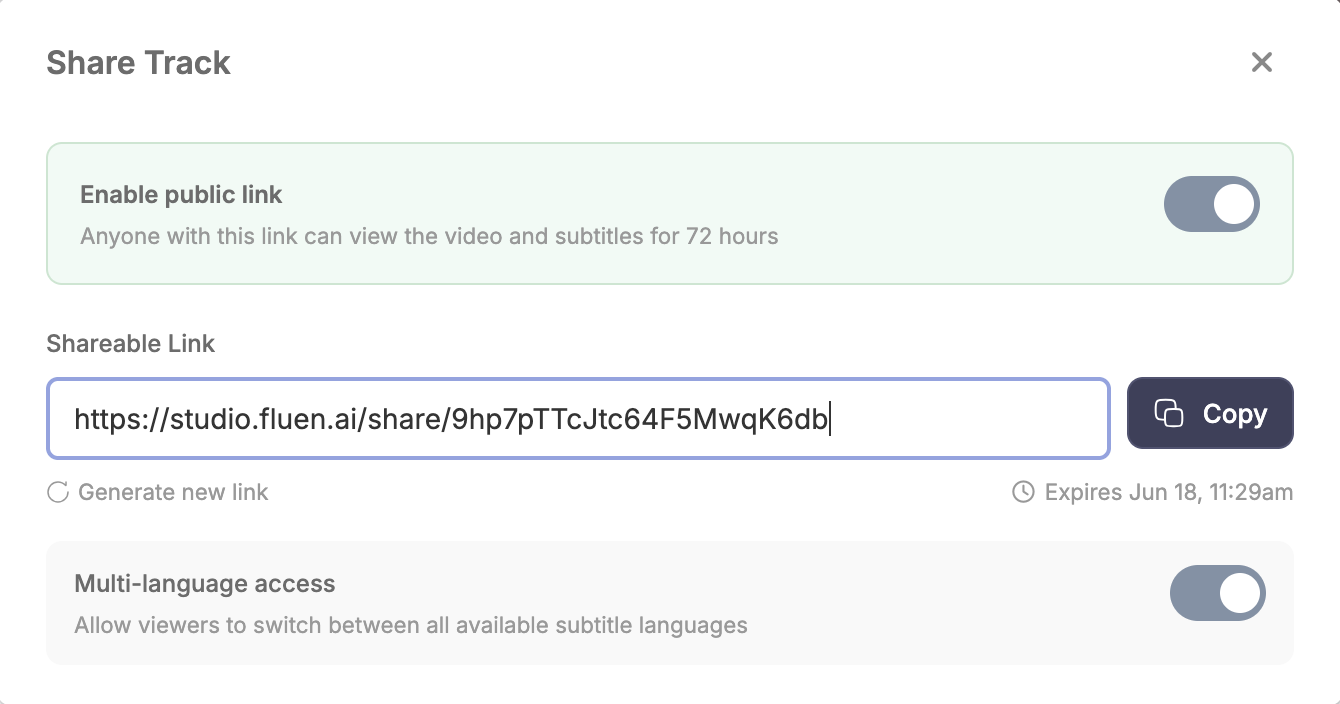
You can now create a link to a finished subtitle that anyone can open, even without a Fluen account. The link shows a clean, read-only preview of the video alongside its subtitles. Links stay private until you share them, and they expire automatically after a few days.
Improved
Uploaded files now appear in your library right away, without waiting for a refresh.
New
Transcribe videos that mix more than one language
When a video switches between languages, Fluen now follows along and captions each part in the language actually being spoken. The result is a faithful mix: the parts spoken in English stay in English, the parts in Spanish stay in Spanish, and so on. Supported languages are English, Spanish, French, German, Hindi, Russian, Portuguese, Japanese, Italian, and Dutch.
If you later translate the video into a single language, for example German, every part is translated into that one language, so a mixed-language original becomes one consistent set of German subtitles.
To turn it on, open Subtitle settings in the upload window (it is collapsed by default) and switch on Multi-language audio. We also made transcription more reliable by automatically catching and retrying the rare cases where it would otherwise repeat itself or get stuck.
New
A refreshed interface
We redesigned large parts of Fluen Studio: a clearer upload experience, a tidier media library with search and easier-to-read status, a new account overview that shows your plan and remaining balance at a glance, and a redesigned sidebar.
Improved
You can now reactivate a cancelled plan yourself, without contacting support.
Finally, automatic subtitles you don't have to re-write from scratch.
Fine-tune the auto-generated subtitles if needed, then export or distribute your project in minutes.